 DTechnology DTechnology – Software Tutorials, Game Tips and Reviews
You wanna share your preset to your friend?
You have make rig and you want to share it to your friend?
But you cant save your rig,preset,or object to lib4d file or when you tried it,you got texture error
With lib4d file you can easily backup,share,etc your rig/object
In this post,I’ll show you how to save your object/rig to lib4d file
Here’s the steps :
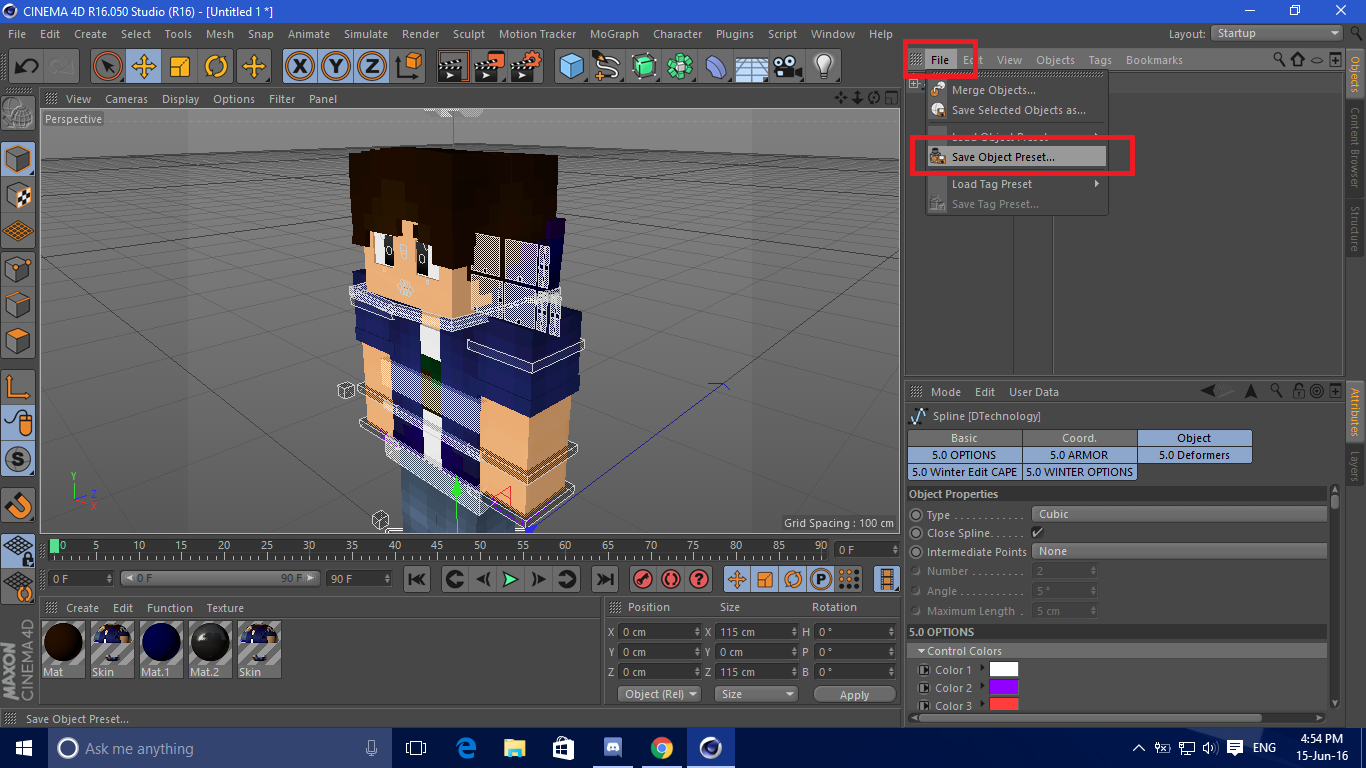
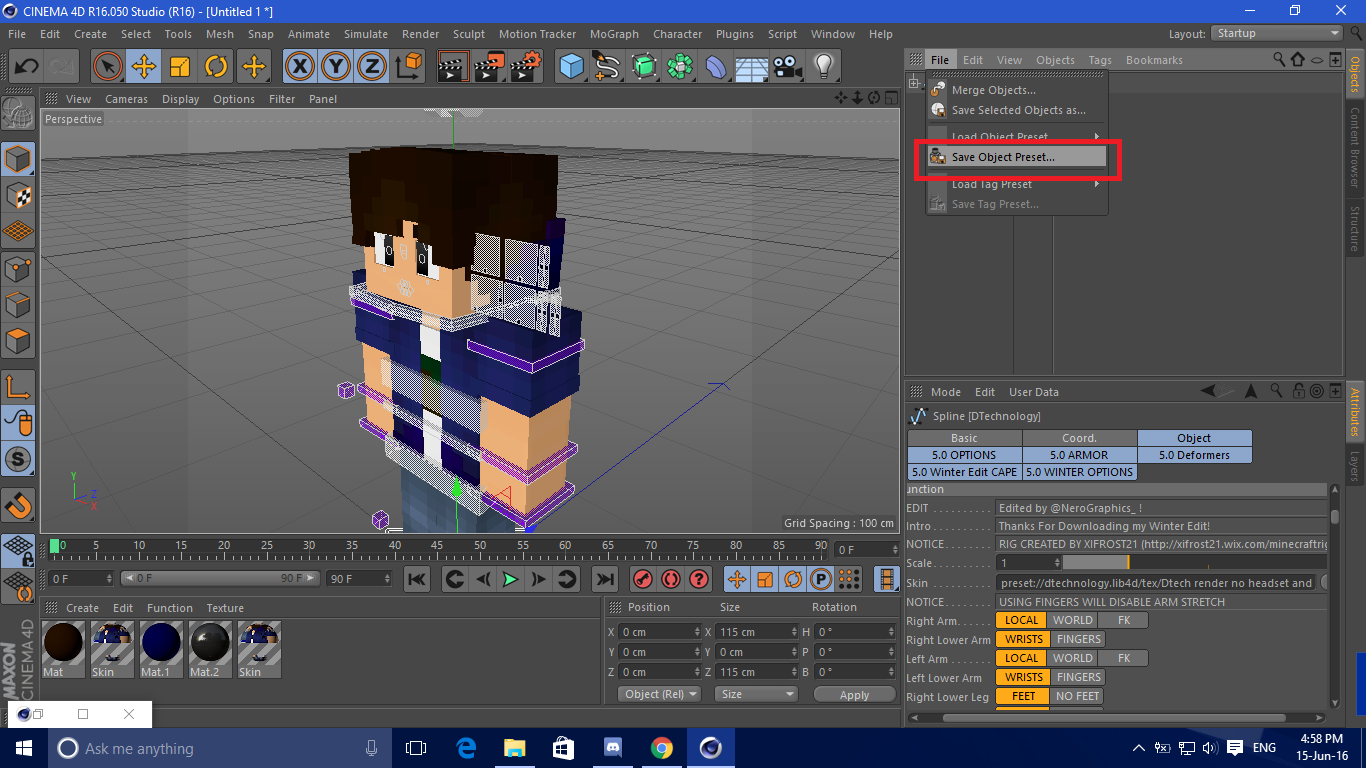
- Click your preset or object then click File>Save Object Preset

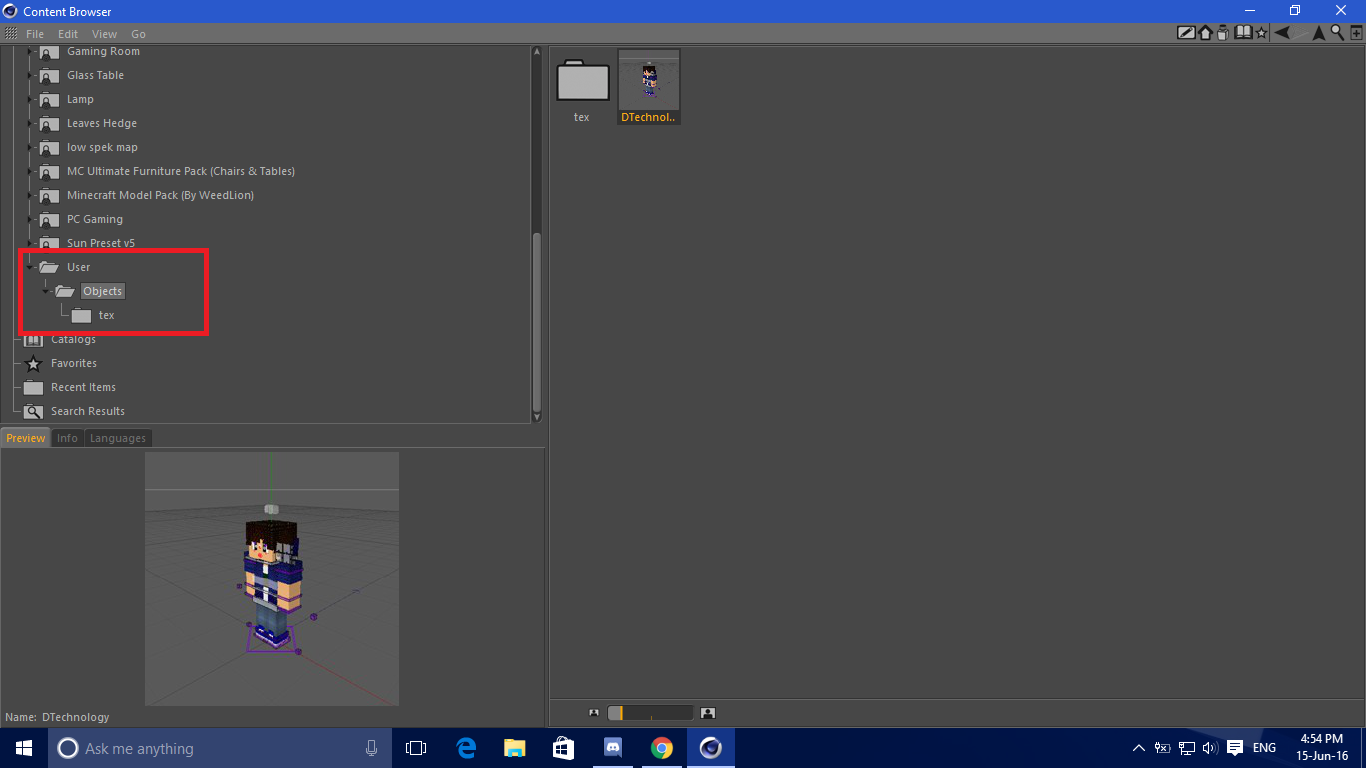
Open Window>Content Browser
Your preset will be saved automaticly in User>Object -
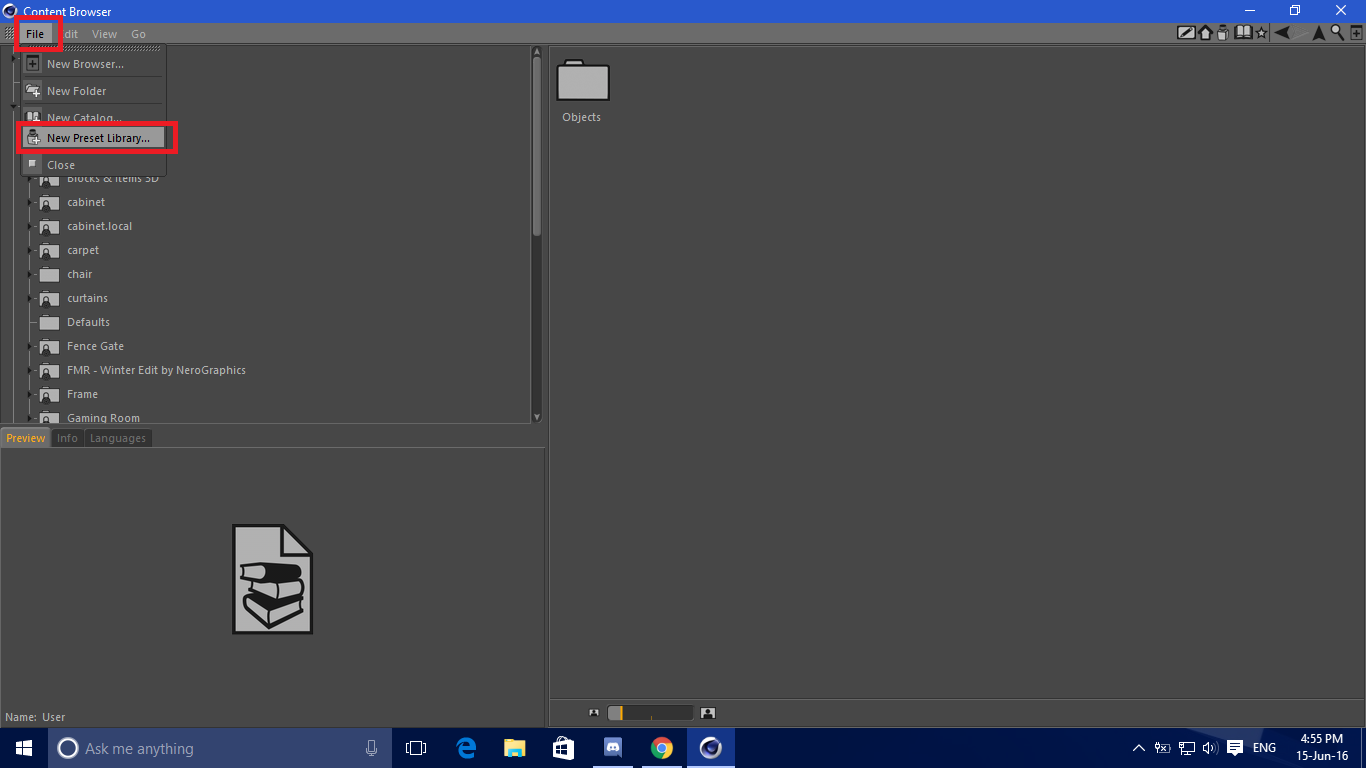
Click File>New Preset Library
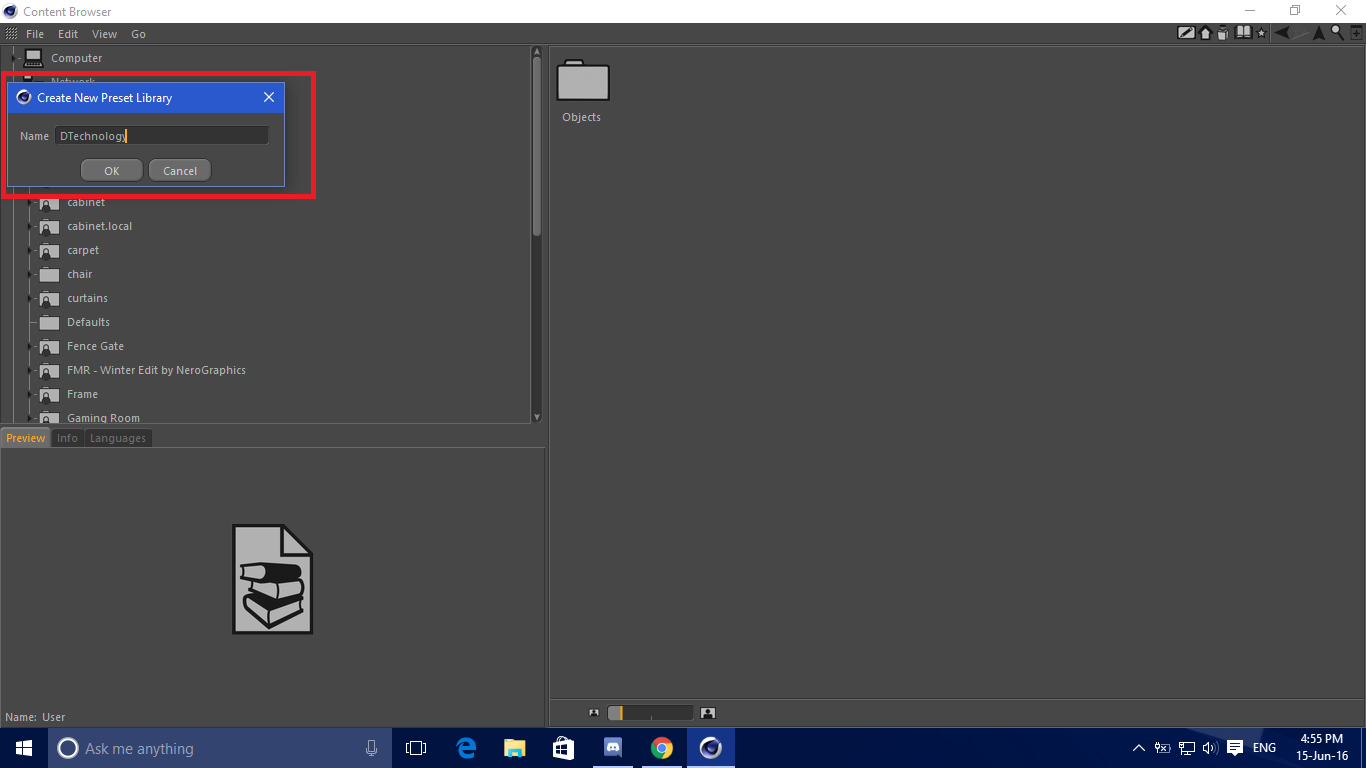
Named it then click Ok
-
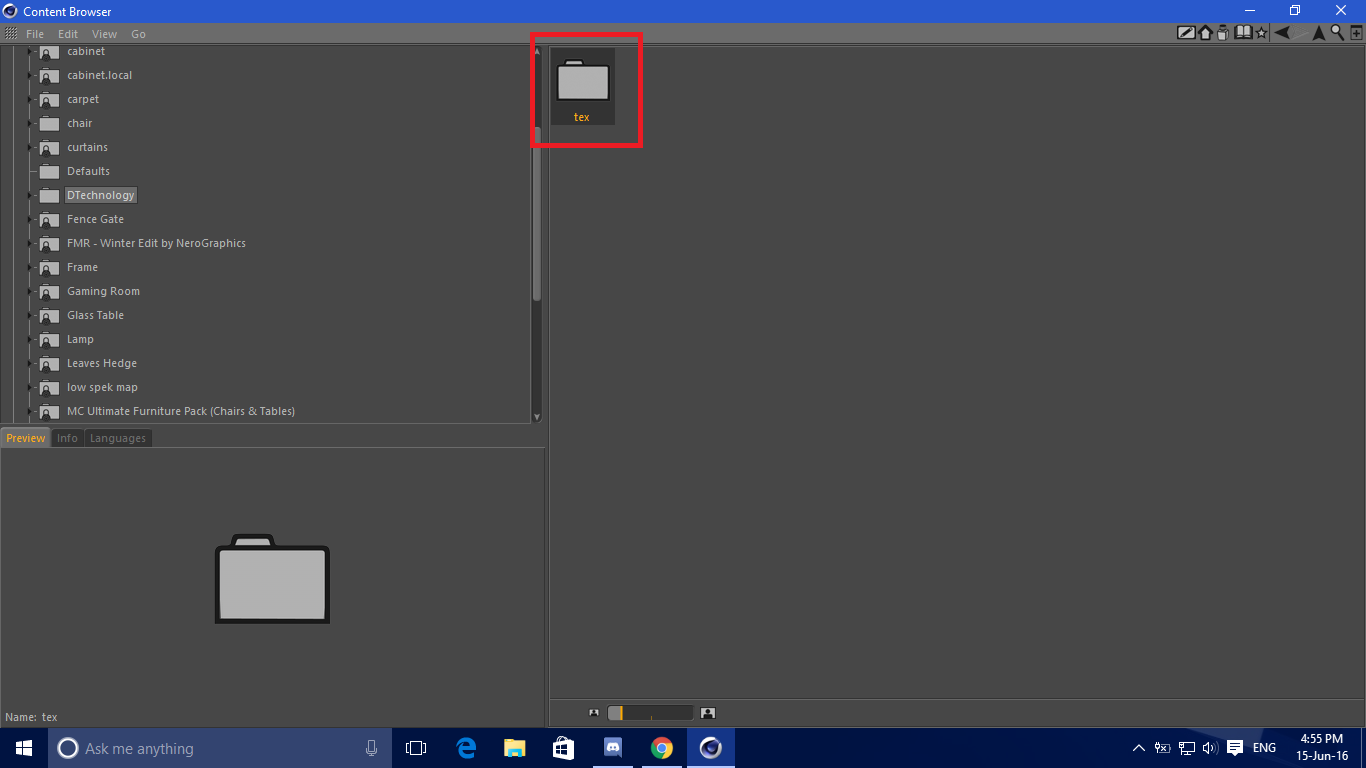
Right click in Green Area(Look at pict) > New Folder
Named its folder to “tex” (Without quotes)
-
Go to User>Object>tex then copy texture wich used by your preset
-
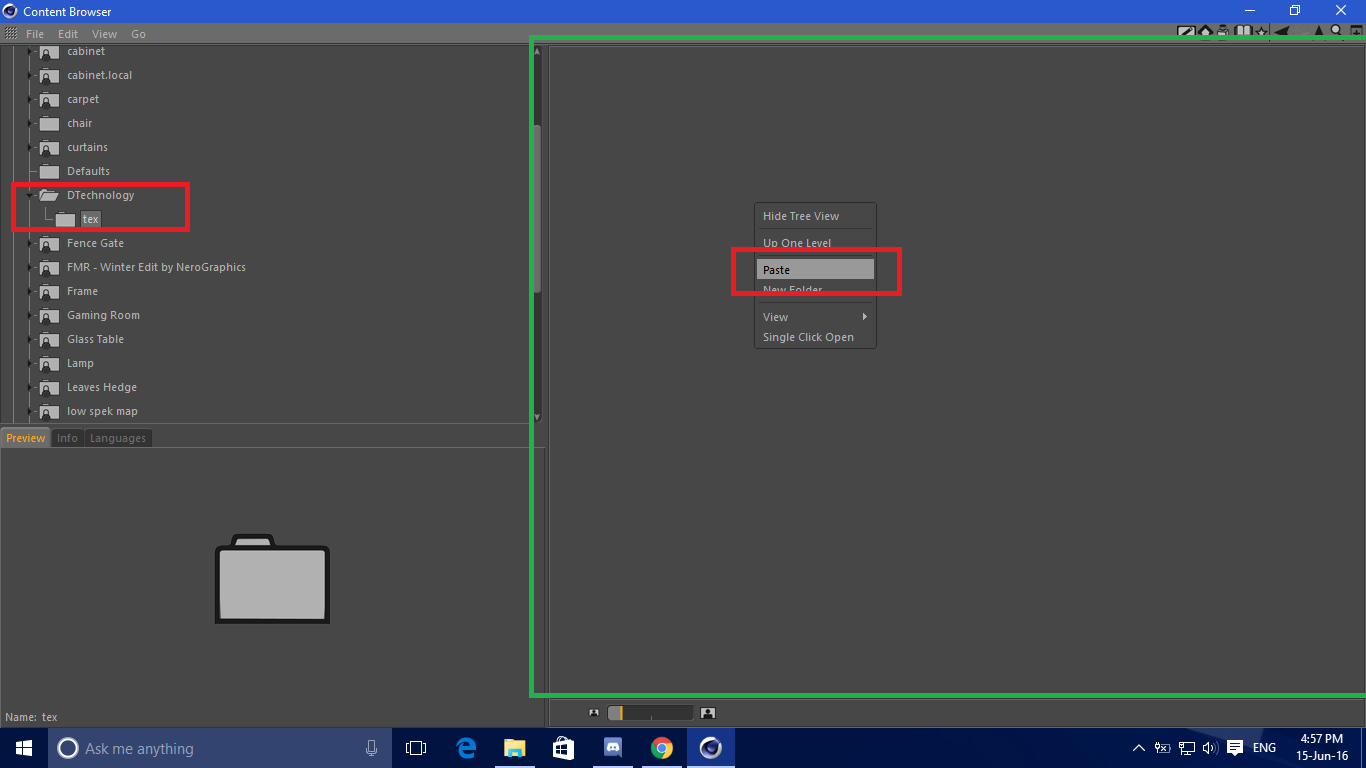
Go to Your Preset Folder
Right click on Green area (Look at pict) then click Paste
-
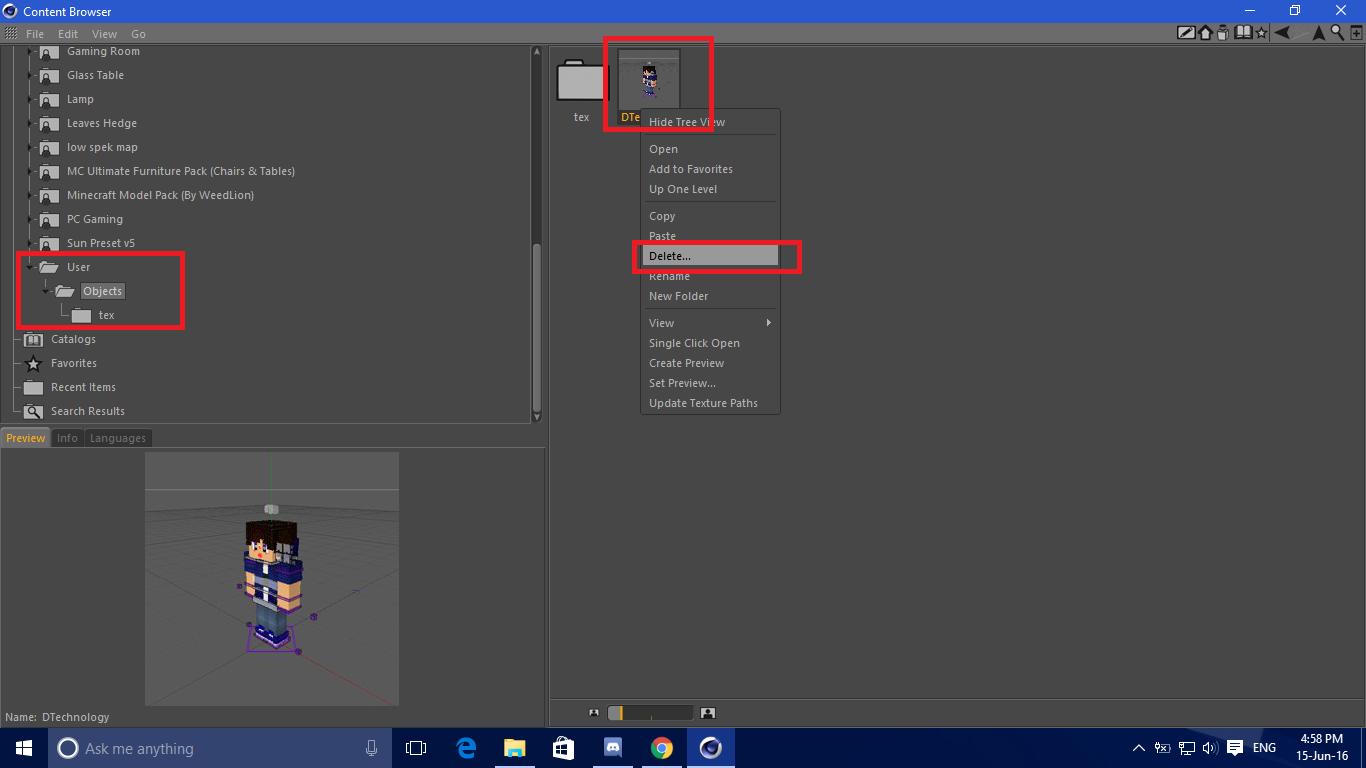
Go to User>Object then delete your preset/object like in the pict (We’ll make new one wich use texture from your preset folder)
-
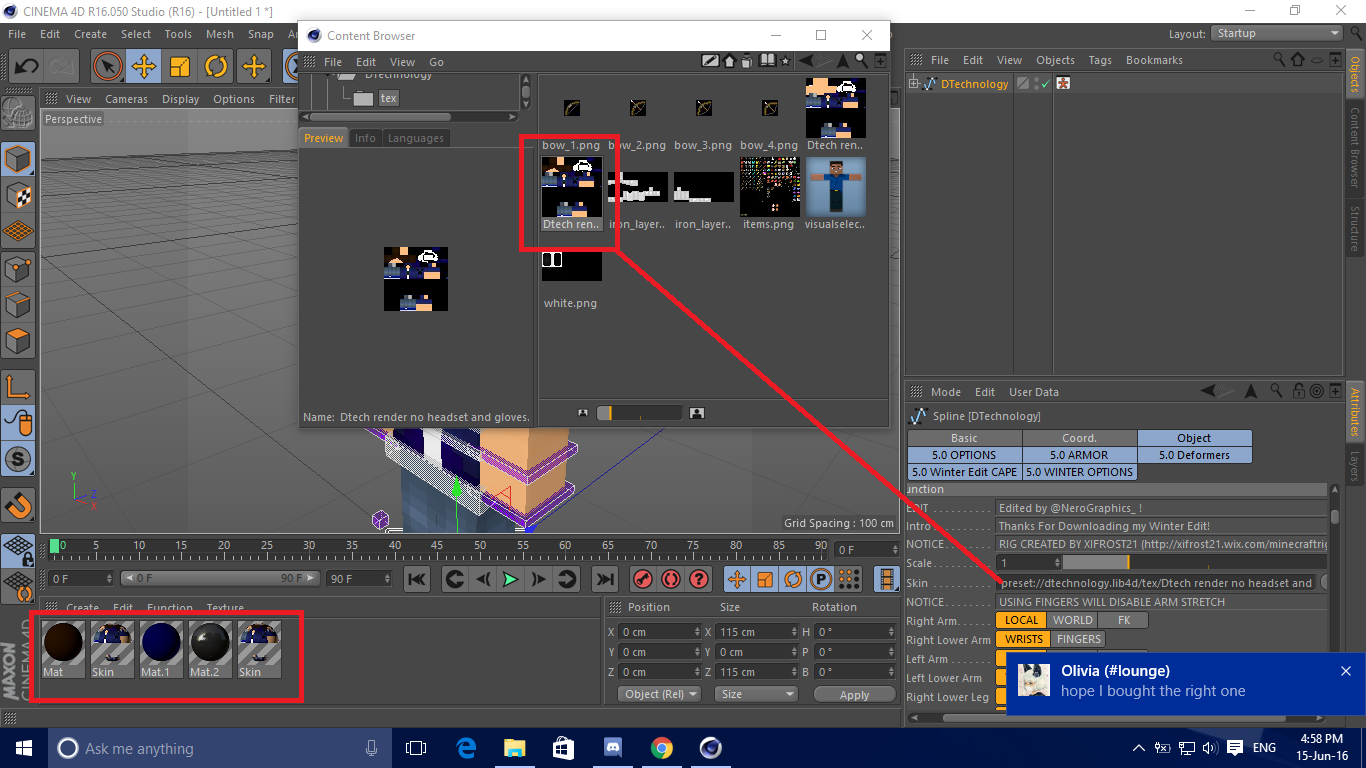
Make your preset/object use texture from Your Preset folder
You can drag and drop it or write it’s directory manually -
After link the texture to Your Preset folder,click on object then save it and named it (Like Step1)
-
Open Window>Content Browser
Go to User>Object
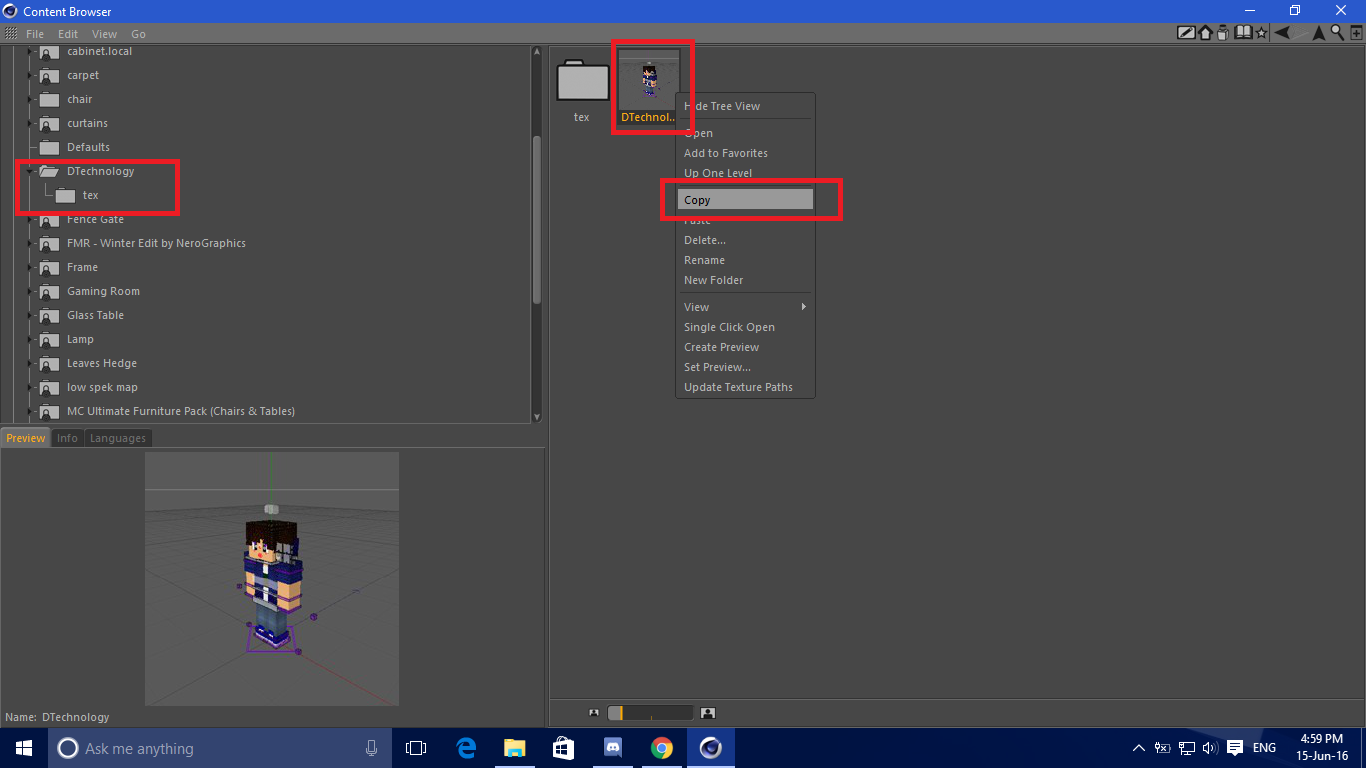
Copy your preset -
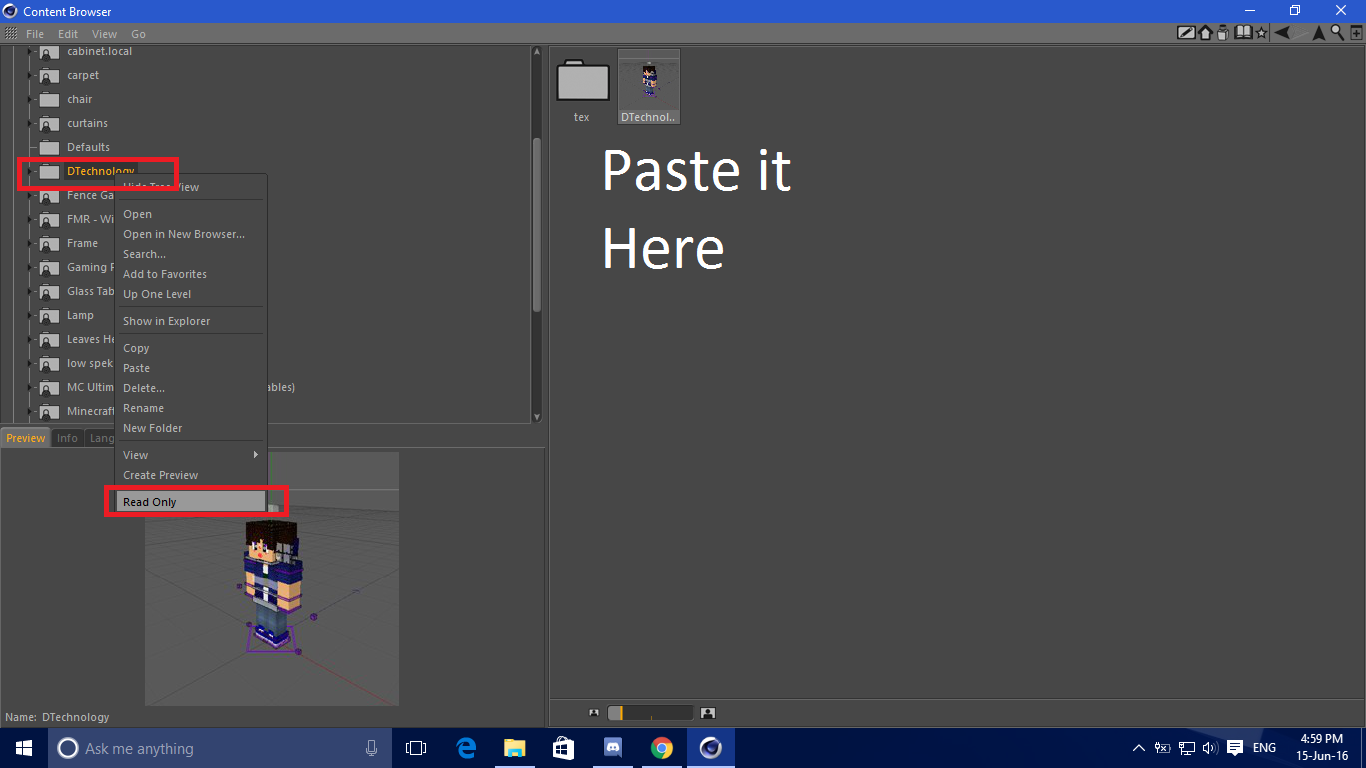
Go to Your Preset Browser then paste it
(Optional)Right click on Your Preset Folder then click Read Only -
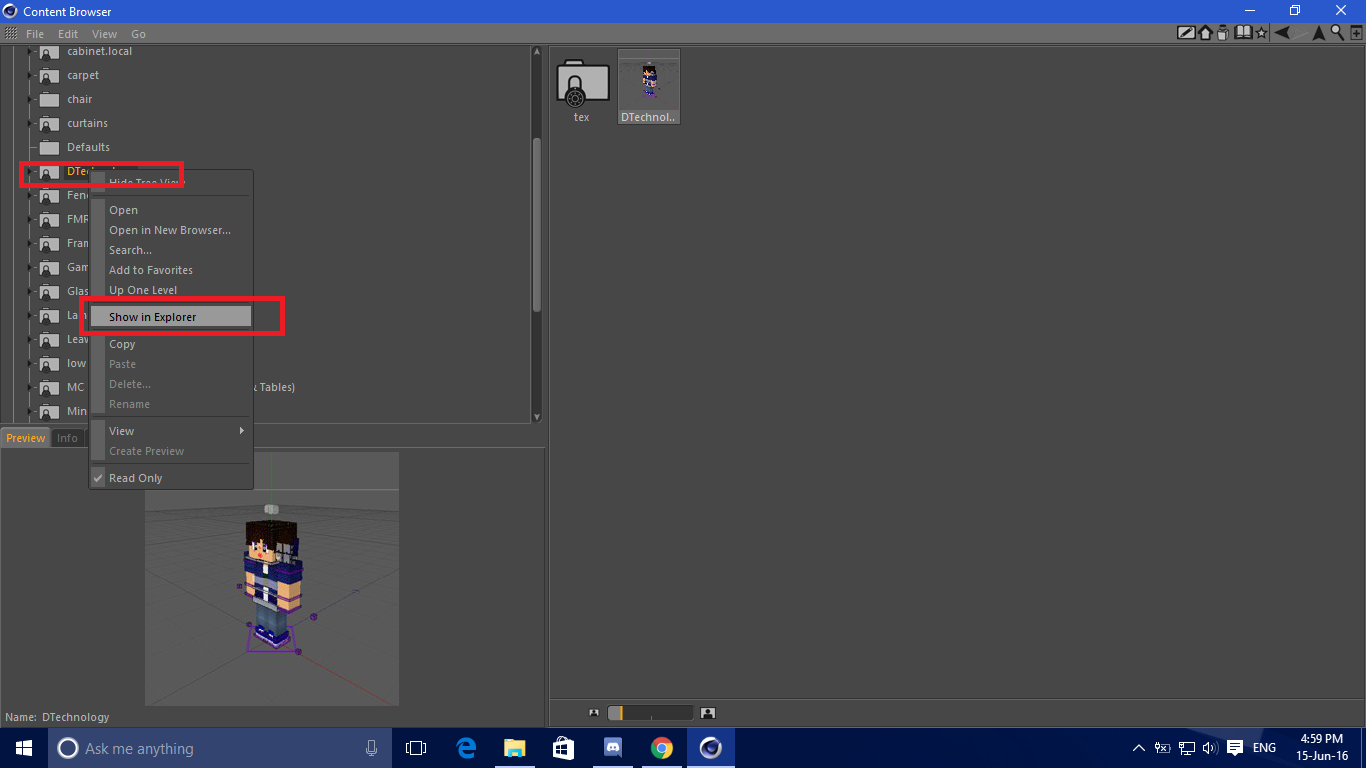
Right click on Your Preset Folder then click Show In Explorer
-
Now Explorer window will apear,you can freely upload,copy,move,bakcup etc your preset wich already become lib4d file
If you dont understand,you can ask in the comment
Or you can watch video version :